After you have verified the inter-battery connections, terminal torque, chassis grounding, inter-battery and external communications, and external connections are made, the batteries may be powered on. The following steps should be taken to ensure a safe first start:
1. With the external breaker OFF, verify the reported state of charge and open circuit voltage (OCV) of the battery displayed from the BMS on the screen on the front of the unit (see MANUAL BALANCING). Leave the side-mounted breaker OFF for this step and wake the battery from a storage state by pressing the ON/OFF button on the rear of the device.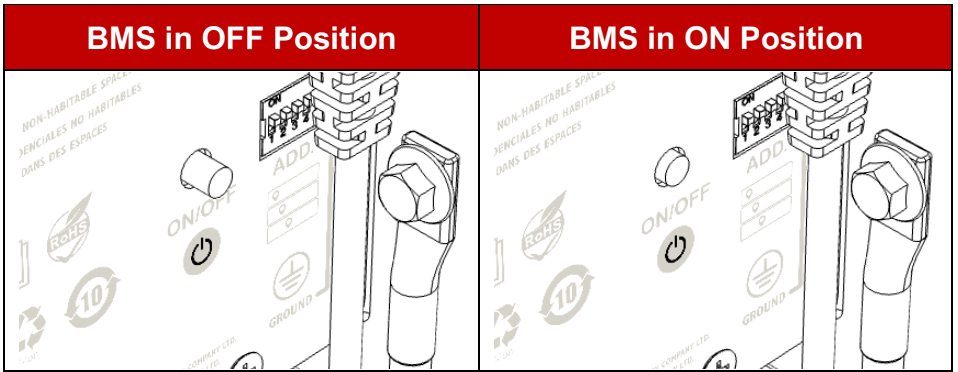
Once the BMS boots up and the screen is illuminated, verify the following:
a. The recommended deviation in open circuit voltage (OCV) is 0.03V (reported as the lowest decimal available on the screen). If the deviation exceeds 0.03V, we recommend conducting a manual balancing before initial connection.
b. The recommended deviation in state of charge (SOC) is 5% reported from the display. If the deviation exceeds 5%, we recommend conducting a manual balancing before initial connection.
2. Once the state of charge and open circuit voltages have been verified, turn the BMS of each unit OFF (see illustration above).
3. With the BMS OFF, verify proper torque and double-check the polarity (positive versus negative) of external input & output connections one last time. Connecting batteries to external equipment in reverse polarity may damage external
equipment.
a. If any additional current limits may need to be set to protect external equipment, these should also be verified at this time.
4. With the BMS OFF, switch the side-mounted breakers of each module to the “ON” position, (up).
5. Beginning at the bottom of the stack [MODULE 1], turn each BMS ON via the button on the rear of the module. (see illustration above)
6. When the relays on each BMS are turned on, the system is now energized. Ancillary equipment will turn on following this energizing of the system. If the side-mounted breakers or BMS on the module(s) trip after installation, please
refer to the screens on the module(s), mobile app, or troubleshooting via the PC software.
Was this article helpful?
That’s Great!
Thank you for your feedback
Sorry! We couldn't be helpful
Thank you for your feedback
Feedback sent
We appreciate your effort and will try to fix the article