Establishing a Connection
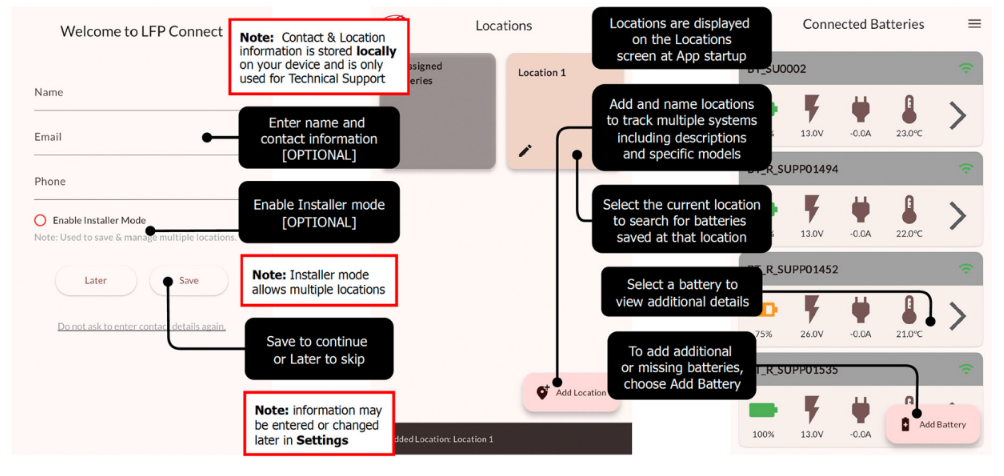
On initial app startup, you will be prompted to add you Name, Email and Phone Number. Data is stored locally on the device and only shared with Rolls Technical Support when the user voluntarily submits a technical support ticket. You may skip this step or come back to add your information at any time in the Settings menu.
If Installer mode is selected, you will be brought to the installer screen where you may add a location name to help identify and sort your batteries. Similarly, you may add details of the installation such as the battery model and number of batteries installed, as well as any ancillary equipment including inverters or chargers. This information is saved within the app and will only be shared in the event of a ticket submission to Rolls Battery Technical Support.
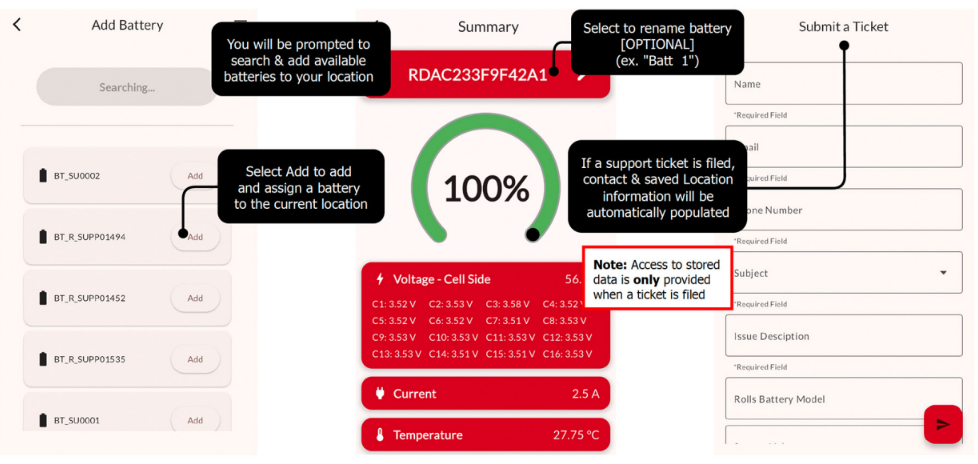
If you are not an installer or within each installation screen in Installer mode, select “Add battery” to search for nearby batteries. Selecting “Scan” will trigger your device to search for batteries within signal range.
Note: When making an initial connection you will be prompted to allow Rolls LFP Connect to find, connect to, and determine the relative position of nearby devices. This permission must be enabled to properly connect to a battery.
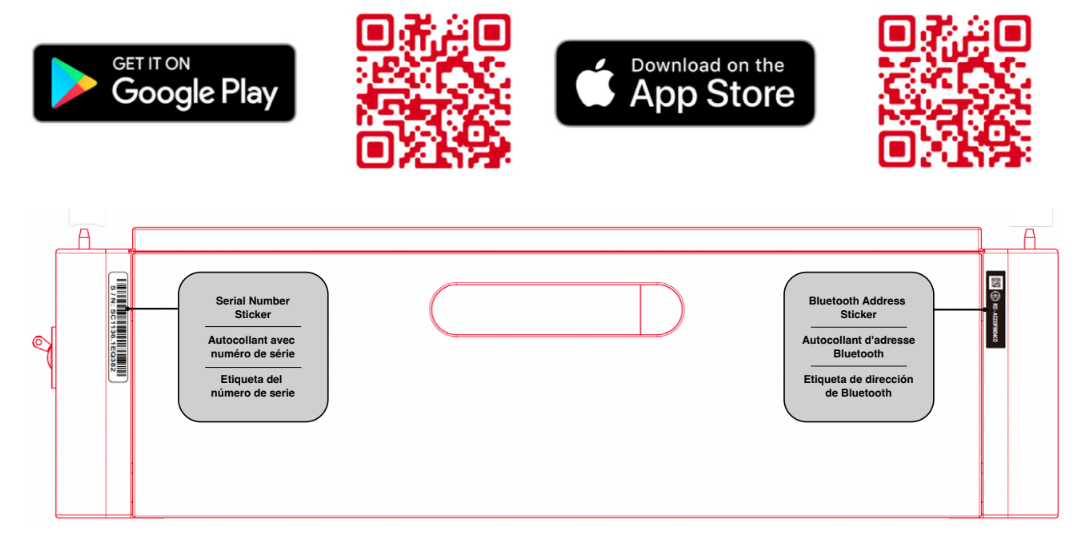
If a battery cannot be found, ensure the BMS is on, and ensure no devices which may block or interfere with a wireless signal are nearby. All batteries within range will be listed. If you are connecting to multiples batteries, refer to the individual Bluetooth device name sticker on the side of the unit to identify each battery. Once connected, you have the option to rename each battery locally through the app. This information is saved to the mobile device but does not overwrite the Bluetooth device name on the BMS. Bluetooth device names are unique and may not be sequential.
Dashboard & Support Screens
The main Dashboard screen includes a display of estimated state of charge (SOC), voltage, current, and temperature of all connected batteries. Selecting a particular battery will also display cycles, any faults, and allow you to set the inverter protocol on an ESS device.
Within the app you may also submit a support ticket directly to Rolls Battery Technical Support. Once filed, an email confirmation with ticket number will be received confirming receipt of your request and you will be contacted by a member of the Rolls Technical Support team regarding your issue. To expedite the technical support process, please complete the provided form with as much relevant information as possible to better aide Rolls Technical Support personnel in offering assistance and/or resolving an issue.
Was this article helpful?
That’s Great!
Thank you for your feedback
Sorry! We couldn't be helpful
Thank you for your feedback
Feedback sent
We appreciate your effort and will try to fix the article