Appendix C: Rolls LFP Desktop V2 & Rolls LFP Connect App Guide
Communication Setup
Rolls S48-100LFP STACK-LV batteries are configured for Victron Energy systems by default via CAN bus. Other inverters will require setting the proper protocol in software. The BMS CAN bus protocol may be properly reconfigured using Rolls LFP Desktop V2 software on a PC, or via the Rolls LFP Connect App on a mobile phone.
Setup Using Rolls LFP Desktop V2
The following steps are physically performed on the Rolls LFP Batteries and a PC with Preinstalled Rolls LFP Desktop V2.
Connect the LINK OUT port on battery MODULE 1 with the PC using the RS-485 to USB Converter Cable supplied with the LFP STACK BASE+TOP ASSEMBLY.
Open Rolls LFP Desktop V2 software on the PC.
Refresh and select the correct port number from the drop-down.

Select MODULE 1 as shown above.
Click CONNECT. The battery status information will now be shown on the Real Time Monitoring tab.
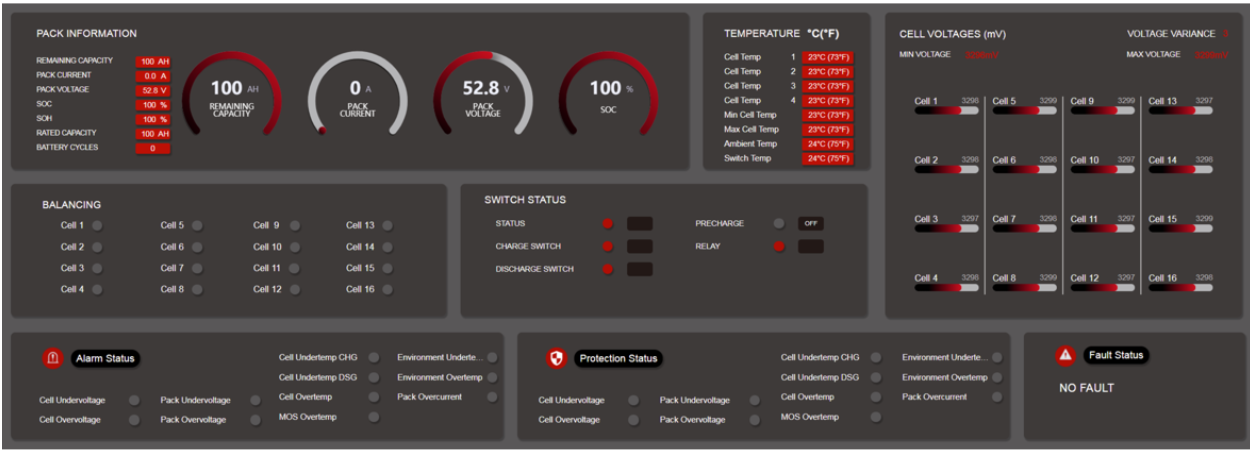
Go to the Inverter Protocol Settings tab.
Select the required CAN bus or RS-485 protocol from the respective drop-down menus for each standard.
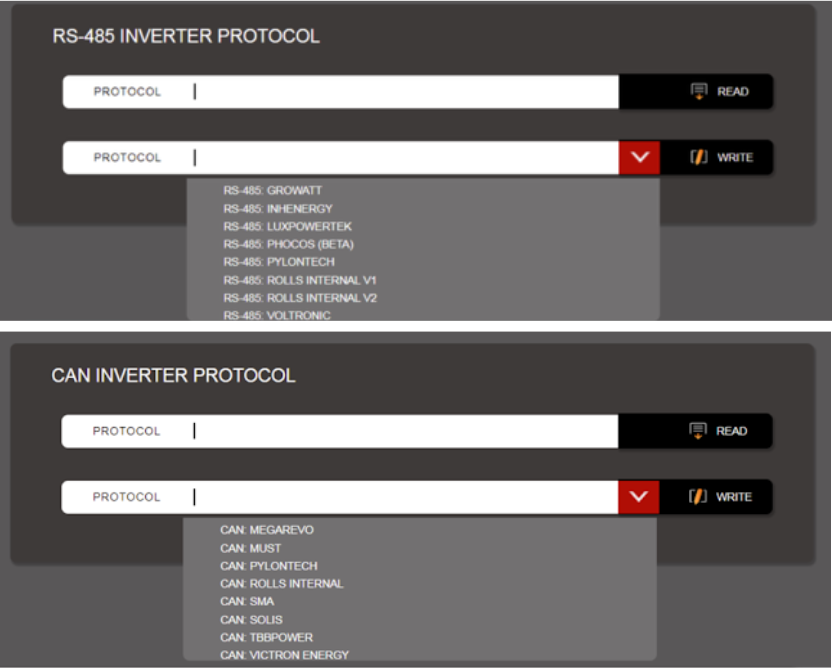 Note: Please ensure that the external communication cable is properly connected to either the RS-485 or CAN bus port on the rear of the device.
Note: When reading the protocol from the ESS system, the field will only populate for the protocol type which is set. If you find you cannot read the protocol with CAN bus or RS-485, try with the other button.
Click Write. This will apply the requested protocol to the battery.
Wait for confirmation shown in the notification screen below.
Click Read above the drop-down that was set. You should now see the requested protocol appear as the selected Inverter type.
Rolls LFP Desktop V2 setup process is now complete.
Setup Using Rolls LFP Connect App Protocol Setting Wizard
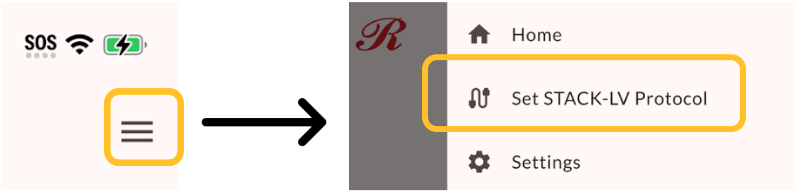
From the main screen of the device, select the three lines in the top right to go into the side menu. There, select Set Stack LV Protocol from the menu.
You will then be prompted to select relevant batteries which will be set to the inverter protocol. Start by searching for nearby batteries by sitting Search. If you find that a battery you anticipate being there does not show up. Try selecting Disconnect All in case the request to disconnect the battery from the mobile device was unsuccessful. Then, hit Search again.
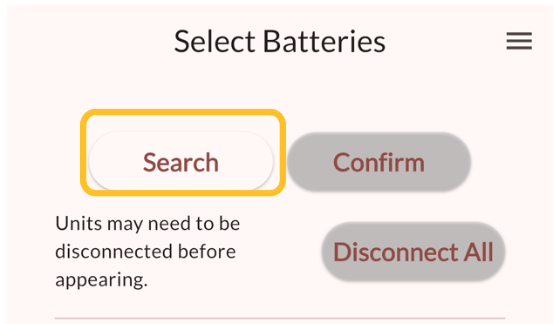
Once the batteries you would like to set appear in the found batteries section you may then check the box beside each to set them in bulk or individually. The most important one to set is always the unit set to MODULE 1 which will connect to the external RS-485 or CAN bus required by the inverter.

Hit confirm to move on to the next screen, which will allow you to check the current inverter settings of those inverters, or set a new protocol.
To set a new protocol, simply select the relevant protocol from the Select Inverter Protocol list, being mindful of whether it is an RS-485 or CAN bus protocol, then hit Set All to set.
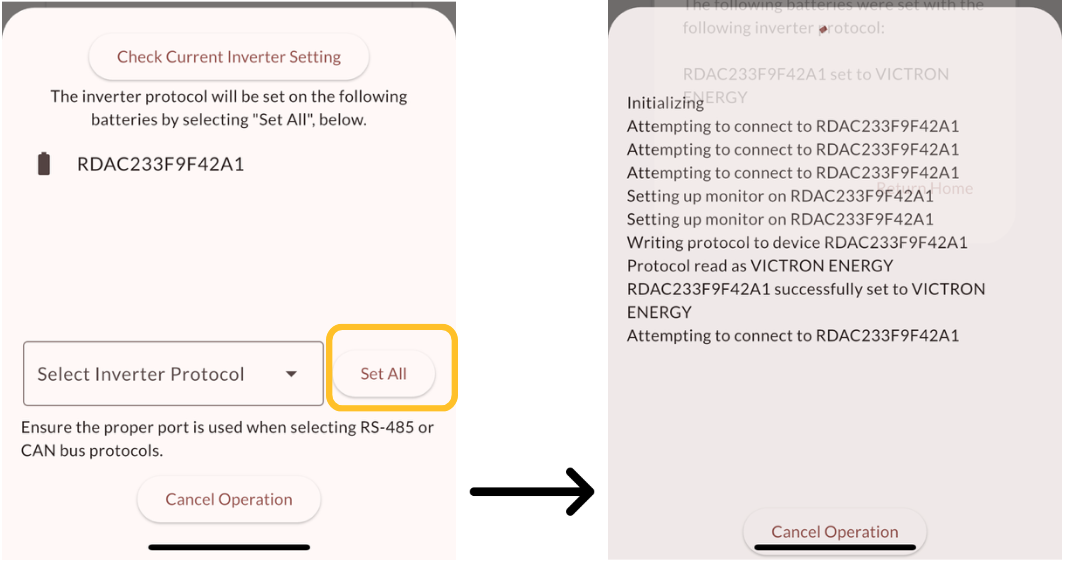
You'll be asked to confirm that you are setting the proper number of batteries to the proper inverter protocol.
You will then be shown a status screen as the mobile device attempts to connect, configure the Bluetooth connection, and write the protocol of each requested battery module, before finally being confirmed that the protocol write has been successful. Lastly, you will receive a confirmation screen which details which inverters were properly set and which ones may have failed or require setting again.
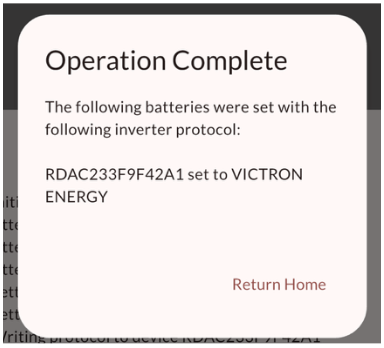
Once the setup wizard has completed, you'll be taken to the start screen of the app.
Rolls LFP Connect setup process is now complete.
Was this article helpful?
That’s Great!
Thank you for your feedback
Sorry! We couldn't be helpful
Thank you for your feedback
Feedback sent
We appreciate your effort and will try to fix the article