Rolls STACK-LV Battery — Firmware Update Procedure
⚠️ DISCONNECT ALL LOADS AND SOURCES TO THE BATTERY BEFORE CONTINUING
Software: Rolls LFP Desktop V2 (Download link)
Connection: RS-485 to USB cable or adapter
Firmware format: .BIN
The firmware update process for the Rolls STACK-LV battery series is performed using the Rolls LFP Desktop V2 software. A Windows PC connects directly to the battery system with the included RS-485 to USB cable or adapter, allowing the technician to upload new firmware and monitor the update progress.
Firmware updates should be applied to all batteries in the STACK-LV system.
1. Preparation and safety
Important: Disconnect all loads and charging sources from the battery before proceeding.
This includes connected inverter/chargers, solar charging sources, and other equipment capable of charging or discharging the battery.
Before beginning, ensure that the following are available:
A Windows PC with Rolls LFP Desktop V2 installed.
The supplied RS-485 to USB communication cable or adapter.
The correct
.BINfirmware file for the battery model.Access to Module 1 of the STACK-LV battery system.
2. Connect to the battery
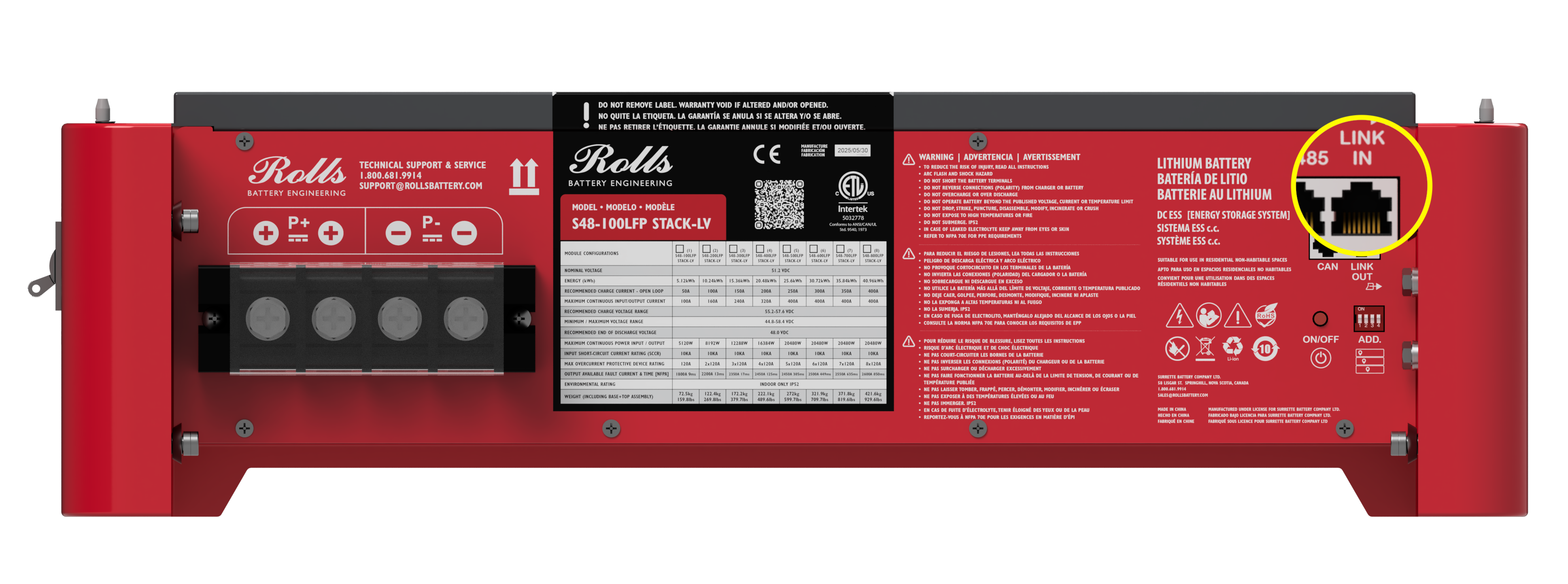
Connect the RS-485 end of the communication cable to the Link In port on Module 1 of the STACK-LV system.
Connect the USB end to the PC.
Launch the Rolls LFP Desktop V2 software.
Confirm that the software opens to its Dashboard and establishes communication with the battery.
3. Select and upload the firmware
Within Rolls LFP Desktop V2:
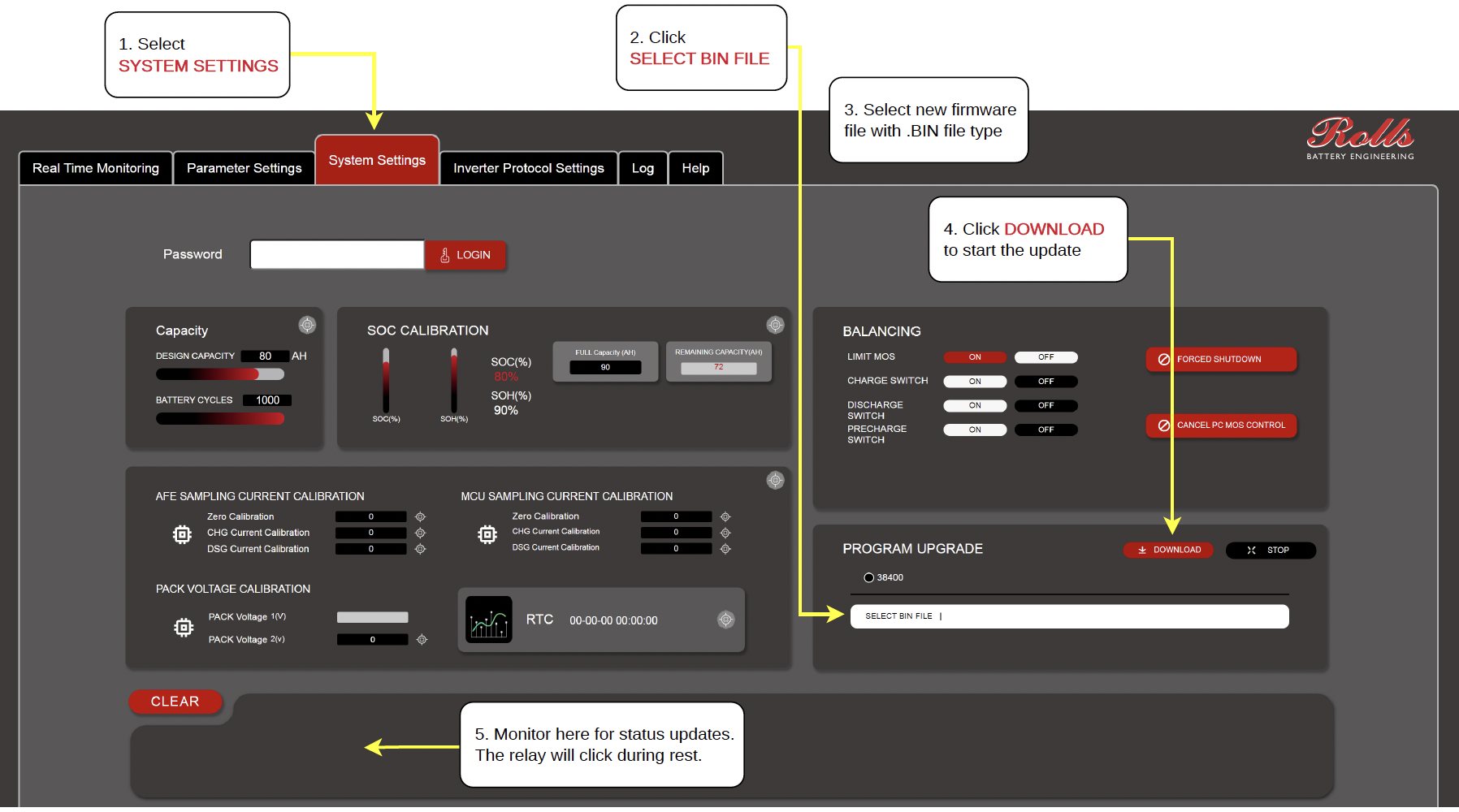
Select the SYSTEM SETTINGS tab.
Locate the PROGRAM UPGRADE section on the right side of the screen.
Click SELECT BIN FILE.
Browse to and select the appropriate firmware file with the
.BINextension.Click DOWNLOAD to initiate the firmware update.
The firmware update will begin after the Download command is selected.
4. Monitor the firmware update
During the update:
Monitor the status messages displayed in the lower section of the software interface.
The battery's internal relay may click during the reset period, as noted in the procedure.
Maintain the communication connection throughout the update.
Avoid interrupting the update or disconnecting the communication cable while programming is underway.
5. Completion and verification
After the software indicates that programming has finished, the following checks are recommended before returning the system to service:
Confirm that the software reports successful completion without errors.
Verify communication with the battery through the Dashboard.
Check the installed firmware version, where available.
Confirm that the battery reports normal operating status and no unexpected alarms.
Restore charging sources and loads only after confirming that the battery system is ready for operation.
For assistance with this process, contact Rolls Battery Technical Support.
Was this article helpful?
That’s Great!
Thank you for your feedback
Sorry! We couldn't be helpful
Thank you for your feedback
Feedback sent
We appreciate your effort and will try to fix the article